
How to find the best Wi-Fi channel
The best Wi-Fi channel is the one where nearby networks overlap yours the least, weighted by how strong they are. On 2.4 GHz, choose channel 1, 6 or 11, whichever has the weakest neighbors. On 5 GHz there's far more room, so pick a channel no strong network is using. Scan before you change anything, because the right answer depends on your neighbors, not on a rule.
Why does the channel matter?
Wi-Fi networks on the same or overlapping channels have to share the air. Only one device can transmit at a time on a channel, so when your neighbor's router is busy, yours waits. The result is lower speed, higher latency and more dropouts, even with a strong signal.
In an apartment building you might see 20 or more networks. Moving to a quieter channel is free, takes a minute and can make a real difference.
Why channels 1, 6 and 11 on 2.4 GHz?
The 2.4 GHz band is narrow. Channels are numbered 1 to 11 in the US (up to 13 in many other countries), and they're only 5 MHz apart. But a Wi-Fi network is usually 20 MHz wide, so it spreads across about four neighboring channel numbers.
That's why channel 3 interferes with networks on 1 and 6. Only 1, 6 and 11 are far enough apart not to overlap each other.
This leads to a rule that surprises people: sharing a channel is better than overlapping one. If your neighbors are on 1 and 6, putting your network on 3 makes things worse for everyone. Networks on exactly the same channel can take turns politely; networks that partly overlap just disturb each other.
Also avoid 40 MHz wide channels on 2.4 GHz. They take up most of the band and collide with almost everything nearby.
What about 5 GHz?
The 5 GHz band has many more channels, and they don't overlap when they're 20 MHz wide. Common ones are 36–48, 52–64, 100–144 and 149–165 (the exact list depends on your country). Routers often combine several into a 40, 80 or 160 MHz wide channel for more speed, so one network can cover four or eight channel numbers.
5 GHz also doesn't travel as far through walls as 2.4 GHz, so your neighbors' networks are usually weaker. It's often the easiest way to escape a crowded 2.4 GHz band, if your devices support it.
What are DFS channels?
Channels 52 to 144 on 5 GHz are DFS channels (Dynamic Frequency Selection). They're shared with weather and military radar, so a router using them must listen for radar first and move off the channel immediately if it detects any.
That has some side effects:
- When the router starts up on a DFS channel, it has to listen for about a minute before it can use it.
- If radar is detected, the network briefly disappears while the router moves to another channel.
- Some routers don't offer DFS channels at all, and some older or cheaper devices can't connect to them.
The upside is that DFS channels are often empty, because many routers avoid them. If your devices all support them and you aren't near an airport or weather station, they can be the quietest option.
And 6 GHz?
Routers and phones with Wi-Fi 6E or Wi-Fi 7 can use the 6 GHz band. It's new, wide and usually almost empty. To help devices find networks quickly, 6 GHz has preferred scanning channels (PSC): channels 5, 21, 37 and so on, every 16th channel number. Phones look there first, so it's best to put a 6 GHz network on a PSC channel.
6 GHz has even shorter range than 5 GHz, so it works best in the same room as the router or the next one.
Why isn't the emptiest channel always best?
Counting networks is a good start but not the whole story. One strong neighbor can disturb you more than five weak ones. A network two floors away at -85 dBm barely matters; the apartment next door at -55 dBm matters a lot.
So when you scan, look at signal strength as well as the number of networks. (If dBm is new to you, see what a good Wi-Fi signal is.)
Also, your own network may appear several times, for example a mesh system or an extender. Those don't compete with you in the same way, so don't count them against a channel.
How do you change the channel?
- Find your router's address, usually
192.168.0.1or192.168.1.1. It's often printed on a sticker on the router, along with the admin password. - Open that address in a browser, or open your router's app if it has one, and log in.
- Look for Wireless, Wi-Fi settings or Advanced. There's usually a separate setting for 2.4 GHz and 5 GHz.
- Change Channel from Auto to the number you picked, and save.
Your devices will disconnect for a few seconds and reconnect on their own.
Should you just leave it on Auto?
Auto channel selection is fine for many homes. The router picks a channel when it starts, and some re-check now and then. But many routers choose once at power-up and never look again, and some aren't good at it.
A reasonable approach: scan first. If your router's automatic choice is already one of the clearest channels, leave it. If it's sitting on a crowded channel, set it manually, and check again every few months or if your Wi-Fi gets worse, since neighbors change too.
If a better channel doesn't help, the problem may be distance or walls rather than interference. See finding Wi-Fi dead spots, or check whether it's your Wi-Fi or your provider.
Doing it with WiFi Meter
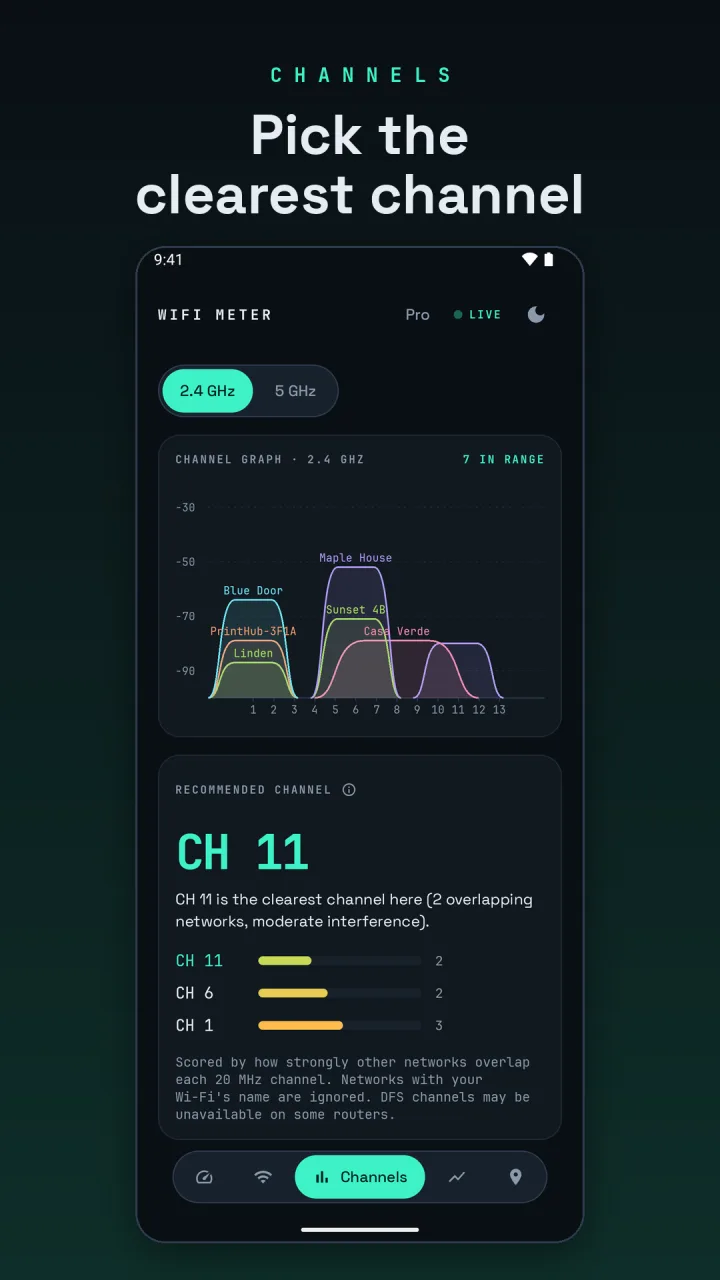
Open the Channels tab. It draws every nearby network over the channels it uses, for 2.4, 5 and 6 GHz, with DFS channels marked. Below the graph, the app recommends a channel. It scores each 20 MHz channel by how strongly other networks overlap it, and ignores networks with your own Wi-Fi's name, such as your mesh nodes. On 6 GHz it recommends PSC channels only. When a channel has fewer networks but stronger ones, it tells you so.
Android limits how often apps can scan for Wi-Fi: 4 scans every 2 minutes on Android 9 and newer. So the graph refreshes about every 30 seconds, not live. WiFi Meter asks for location permission only because Android requires it for Wi-Fi scans. It never reads your GPS position.