
Who's on my Wi-Fi? How to check
The most complete list of devices on your Wi-Fi is in your router: log in to its admin page or app and look for "connected devices" or "clients". Expect a few unknown entries; most are your own phones, TVs and smart home gadgets, and modern phones even use a random address per network. If you find a device you can't account for, change your Wi-Fi password, use WPA2 or WPA3 security, and give visitors a guest network.
How do you see who's connected?
In your router
Your router keeps a list of every device it has handed an address to, and it's the most reliable place to look.
- Find your router's address, usually
192.168.0.1or192.168.1.1. It's often on a sticker on the router, with the admin password. Many newer routers and mesh systems use a phone app instead. - Log in and look for Connected devices, Clients, Attached devices or DHCP clients.
- You'll see a list with a name (if the device reports one), an IP address (like
192.168.1.23) and a MAC address (a hardware address likeA4:83:E7:12:34:56).
Some routers also show the device maker, the connection type (2.4 GHz, 5 GHz or wired) and how long it's been connected.
With a phone app
Network scanning apps can find devices from your phone by contacting every address on your network and listening for the names devices announce. This is quick and works without the router password, but it has limits on newer Android versions (see below).
Why are there so many unknown devices?
Count what's actually in your home and the list usually makes sense. Besides phones and laptops, think of:
- smart TVs, streaming sticks and game consoles,
- smart speakers and displays,
- printers,
- security cameras, video doorbells and baby monitors,
- smart plugs, bulbs, thermostats, robot vacuums,
- mesh nodes and extenders, which often show up as devices too,
- e-readers, watches and tablets you forgot about.
Many of these report no name, or a cryptic one like ESP_3A4F21, which is a common Wi-Fi chip in smart home gadgets.
Why does my own phone look like a new device?
Modern phones, tablets and computers use a private (random) MAC address for each Wi-Fi network, to stop networks from tracking them. Android 10 and newer, iOS 14 and newer, and Windows all do this by default.
This has two side effects:
- The router can't tell the maker from the address, so your own phone may show as "unknown".
- A phone may get a new random address after you forget and rejoin a network, or after a reset. It then looks like a brand-new device, even though it's yours.
You can usually spot a random address because the second character is 2, 6, A or E (for example x2:, x6:, xA: or xE:).
How do you identify a device?
- Turn things off one by one. Switch off a device, refresh the list and see which entry disappears.
- Check the device itself. Most phones, TVs and consoles show their IP and MAC address in their network settings. Match them against the list.
- Look at the maker. If the router shows a maker for a real (not random) MAC address, that often settles it: a "Roku" or "Sonos" entry is easy to place.
- Rename devices in your router once you've identified them, so the next check is quick.
What if someone is using my Wi-Fi?
If you find a device you really can't account for, lock your network down:
- Change your Wi-Fi password to a long, unique one, at least 12 characters. Every device will have to reconnect with the new password, so anyone who shouldn't be there is out.
- Use WPA3 or WPA2 security. Look in the router's Wi-Fi settings. WPA3 is best if all your devices support it; "WPA2/WPA3" mixed mode is a good compromise. Never use WEP or an open network.
- Turn off WPS. The push-button or PIN pairing feature is convenient but has a history of security problems.
- Change the router's admin password, if it's still the default printed on the sticker.
- Update the router's firmware, to close known security holes.
- Set up a guest network for visitors and smart home gadgets. Guests get internet access but can't see your computers or files, and you can change the guest password without touching your main network.
Some routers let you block a specific device. That's fine as a quick step, but a device with a random MAC address can simply come back with a new one. Changing the password is what actually keeps people out.
Should I worry about a slow network?
A neighbor using your Wi-Fi can slow things down, but it's rarely the main cause of slow internet. Before suspecting freeloaders, check whether your Wi-Fi or your provider is the bottleneck, and whether your channel is crowded by neighboring networks.
Doing it with WiFi Meter
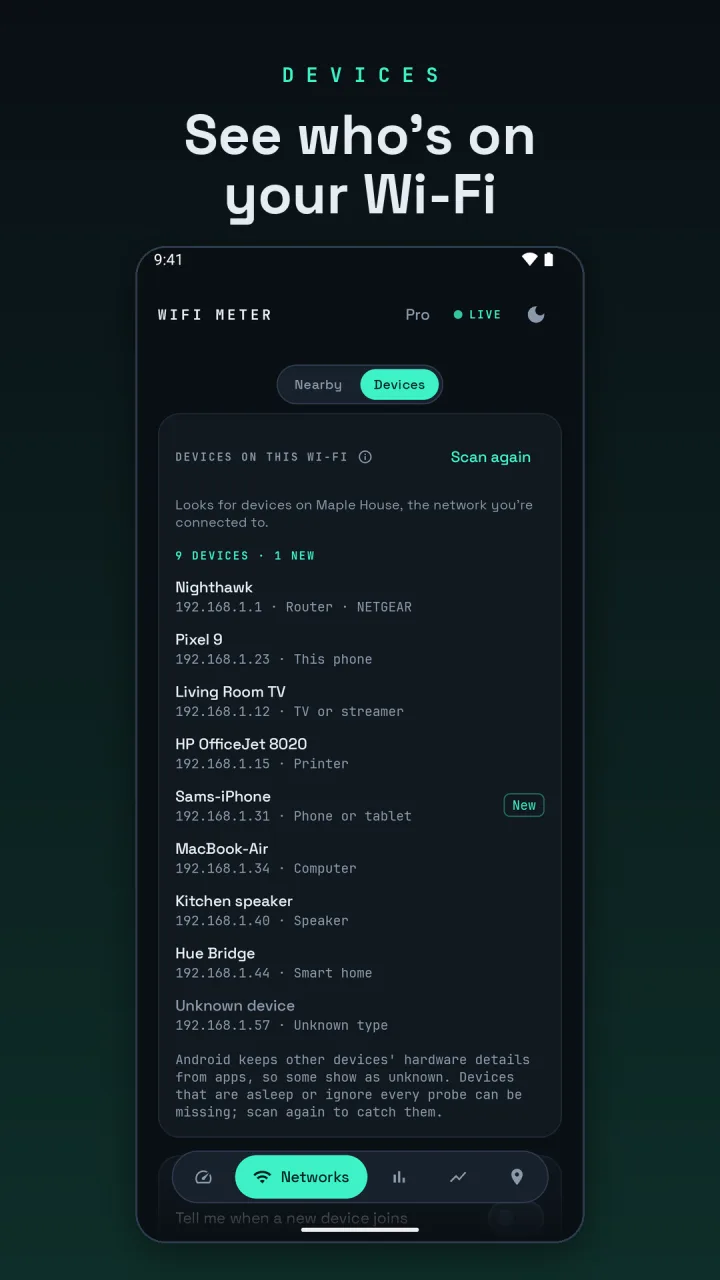
On the Networks tab, switch to Devices and tap Scan. WiFi Meter looks for devices on the network you're connected to and lists them with names and types, such as router, phone or tablet, computer, TV, speaker, printer, camera and smart home device. This is free.
Be aware of the limits. Since Android 10, Android keeps other devices' hardware details from apps, so WiFi Meter can show device makers only on Android 9 and older, and many devices stay "Unknown device" on newer phones. Devices that are asleep or ignore every probe can be missing; scan again to catch them. Your router's list remains the most complete.
With WiFi Meter Pro, the new device alert scans in the background about once an hour and notifies you when a device joins that it hasn't seen before.
WiFi Meter asks for location permission only because Android requires it for Wi-Fi scans. It never reads your GPS position. Device scans stay on your phone.